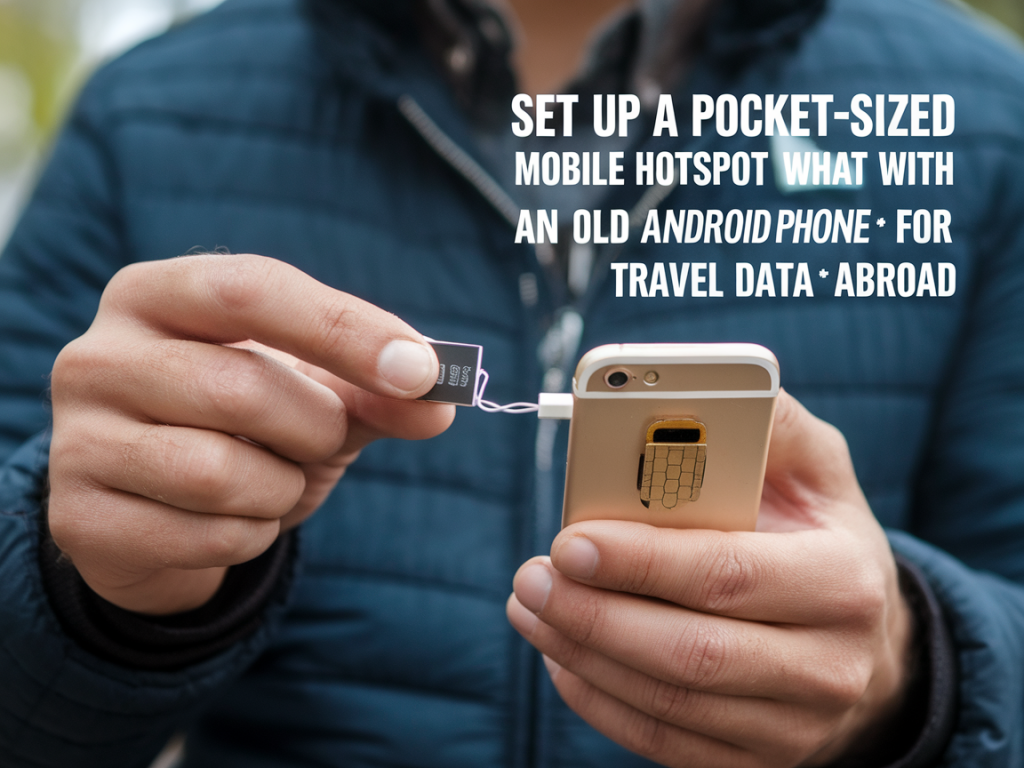
I’ve turned old Android phones into pocket-sized mobile hotspots more times than I can count — it’s one of my favourite travel hacks. Instead of renting expensive travel Wi‑Fi, paying inflated roaming fees, or carrying another single-purpose device, a spare phone gives you a reliable, flexible hotspot that fits in a jacket pocket. Below I walk you through choosing the right phone, preparing it, setting up tethering, securing the connection, and solving common problems I’ve actually encountered on the road.
Why use an old Android phone as a hotspot?
Phones are compact, battery-powered, and designed for mobile data. A few advantages I look for:
- Cost: You probably already own one — no rental or extra purchase required.
- Flexibility: Swap local SIM cards, choose data-only plans, or use eSIM where supported.
- Battery life: Most older devices hold a charge long enough for a day of browsing if you pair them with a small power bank.
- Portability: It slips into a pocket. Much less bulk than a dedicated MiFi unit.
Which phone to use (what to look for)
Not every old Android will make a great hotspot. I prefer devices that meet these practical criteria:
- Good cellular support: Must support the bands used by carriers where you're traveling. Mid-range devices from recent years often have the best band coverage.
- Decent battery capacity: 2500 mAh or higher is preferable; 4000 mAh+ is ideal for long days.
- Stable Wi‑Fi radio: Dual-band (2.4 and 5 GHz) is useful — 5 GHz is faster and less congested when available.
- Unlocked (SIM unlocked): So you can use local prepaid SIMs without trouble.
- Software updates and security: Newer Android versions or custom ROMs can offer better performance and security.
Prep steps before you travel
I always prepare the device well in advance rather than scrambling at the airport. My checklist:
- Factory reset the phone to remove old accounts and apps that may run in the background.
- Install essential apps only: a lightweight browser, Google Maps (offline maps), and a VPN (optional but recommended).
- Disable auto-update for large apps and background syncing to conserve data.
- Update the phone’s OS and carrier settings if available — these can include important APN fixes.
- Set the phone to a home language and enable easy access to hotspot settings (I pin the tethering page to the home screen).
Choosing a data plan and SIM
Local prepaid SIMs usually give the best value. I compare plans on the spot using apps or websites like MobileMonkey (regional marketplaces) or carrier kiosks at airports. Things I check:
- Data vs. call needs: Buy a data-only SIM if you don’t need voice.
- APN and activation time: Make sure the SIM activates quickly and note the APN settings; some carriers require manual APN entry on older phones.
- Roaming rules: If you’ll cross borders, check whether the plan covers neighboring countries.
Step-by-step: Turn an Android into a hotspot
Here’s the core setup I use. The exact menu names can vary by manufacturer (Samsung, Google Pixel, Xiaomi, etc.), but the steps are the same:
- Insert the SIM and restart the phone.
- Go to Settings > Network & Internet > Hotspot & tethering (or Settings > Connections > Mobile Hotspot).
- Tap “Wi‑Fi hotspot” and configure the network name (SSID) and a strong password (WPA2 or WPA3 if available).
- Set the AP band to 5 GHz if you want more speed and less interference, or 2.4 GHz for wider range and compatibility.
- Enable the hotspot. On many phones you can see connected devices and set a device limit.
Security and data-saving tips
Hotspots can be targets for snooping. I protect my devices like this:
- Use a strong password (avoid defaults like “AndroidAP”) and WPA2/WPA3 encryption.
- Enable a VPN on client devices or on the hotspot phone if it supports VPN tethering. I use reputable VPNs like ProtonVPN or NordVPN when in public networks.
- Disable hotspot broadcasting when not in use (turn it off at night or between sessions).
- Limit connected devices and check the hotspot device list regularly.
Power management and accessories
Battery life is the single biggest limiter. Here’s how I stretch it:
- Lower screen brightness and set a short screen timeout.
- Disable unnecessary radios (Bluetooth, NFC) and background syncing.
- Carry a 10,000 mAh power bank — it can charge the phone and still be pocketable. I’ve used Anker PowerCore series reliably.
- If you’ll be stationary for long periods, a USB-C to Ethernet adapter can provide a stable backhaul if you have wired internet where you stay (hotel room or coworking space).
Troubleshooting common problems
I’ve run into flaky connections and slow speeds; here’s how I fix them quickly:
- No internet for connected devices: Check APN settings on the hotspot phone and confirm mobile data is enabled for SIM. Sometimes toggling airplane mode resets the connection.
- Slow speeds: Try switching the hotspot to 5 GHz (if supported) or move to a window for better cellular signal. Also check carrier throttling if you pass a data cap.
- Devices won’t connect: Delete the network profile on the client device and reconnect using the correct password. Ensure MAC filtering is off.
- Hotspot disconnects after a short time: Many phones have a power-saving feature that disables hotspot when idle. Look for “Keep hotspot on” or similar in hotspot settings.
When a dedicated MiFi is worth it
Sometimes a small dedicated hotspot (MiFi) or travel router is a better fit — especially if you need simultaneous, stable connections for many devices or long battery life. Here’s a quick compare table I use when deciding:
| Feature | Old Android Phone | Dedicated MiFi |
|---|---|---|
| Cost | Usually free | €50–€200 |
| Battery life | Moderate (depends on phone) | Often optimized for long runtimes |
| Flexibility | High — can run other apps | Primarily hotspot-only |
| Ease of setup | Easy if phone is unlocked | Very easy, designed for tethering |
| Performance | Good on modern phones | Generally better antenna design |
Real-world tips I use on trips
- Keep the hotspot phone in an outer pocket to avoid overheating and to preserve signal reception.
- If I need long-term connectivity for work, I buy a local monthly plan with a decent data cap rather than repeatedly topping up daily plans.
- Download offline maps for your destination (Google Maps offline areas) and essential content (reading, music) to save data.
- Label the SIM with the activation date and expiry to avoid surprises mid-trip.
Turning an old Android into a hotspot is a small setup that pays off every time I travel: cheaper, flexible, and surprisingly robust. With a couple of pre-trip checks, a good power strategy, and a reliable local SIM, you’ll have a travel-ready pocket Wi‑Fi that keeps your devices connected without the premium price tag.