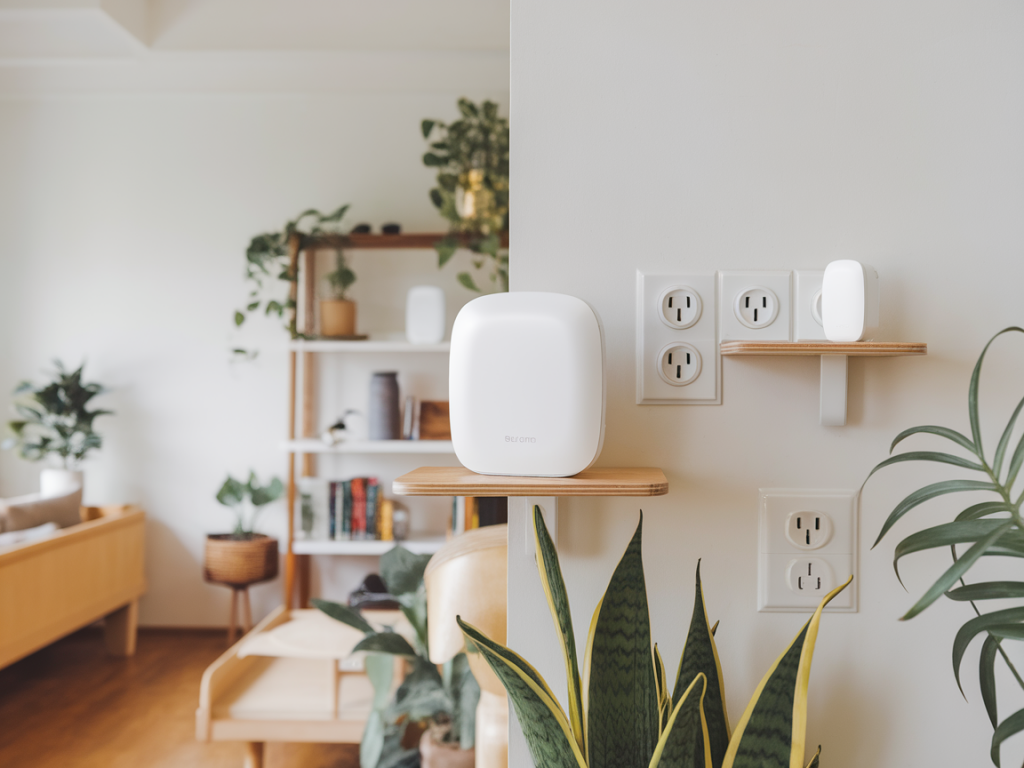
I swapped my chunky, overheating home router for a tidy mesh made of plug-in nodes in my two-bedroom flat and honestly, it felt like freeing up counter real estate and finally getting consistent Wi‑Fi in every corner. If you’re fed up with a single, obtrusive device that drops signal in the bedroom or forces you to pick a "sweet spot" for video calls, this guide walks you through the exact steps I took — practical, hands-on, and aimed at small homes where simplicity and neatness matter.
Why choose a plug-in mesh for a two-bedroom flat?
Before diving into the how-to, let me explain why this approach works well for flats like mine. A compact mesh system uses multiple small nodes (often in plug-in form factors) that communicate with each other to blanket your home in Wi‑Fi. For a two-bedroom flat you typically get:
- Better coverage: Nodes reduce dead zones without long Ethernet runs.
- Cleaner setup: Plug-in nodes take up minimal space and are designed to sit in wall sockets.
- Simpler management: Most consumer mesh systems offer intuitive apps for setup, guest networks, parental controls and speed monitoring.
- Scalability: You can start with two nodes (one connected to the modem/router and another in the hallway or bedroom) and add more if needed.
What you’ll need
Gathering everything beforehand stops surprises mid-setup. Here’s my checklist:
- Mesh system kit with plug-in nodes (I used TP-Link Deco BE85 for one test and a compact Netgear Orbi plug-in pair for another — both do the job, but I’ll describe pros/cons below)
- Your ISP modem (or combo modem/router if your provider gave one)
- Short Ethernet cable (usually included with the mesh)
- Access to your ISP account details (for PPPoE logins, if applicable)
- Smartphone with the mesh app installed
- Optional: small power strip or a spare socket — some flats have limited outlet placement
Step-by-step: Replace the bulky router
I’ll assume you have a modem (or modem/router combo) supplied by your ISP. If you have a combo that you can’t put into bridge mode, you’ll still be able to use mesh nodes — but I’ll include a note about double NAT later.
Step 1 — Pick the primary node location
Place the first node near your modem and a free wall socket. This node becomes the gateway and needs an Ethernet connection to the modem. I usually choose the socket with the least clutter so the node isn’t blocked.
Step 2 — Connect the modem to the primary node
Power on your modem and let it fully boot. Connect the modem’s Ethernet (LAN) port to the primary node’s WAN or labelled “Internet” port. Plug the primary node into the wall socket and power it on.
Step 3 — Install the app and follow onboarding
Open the mesh vendor’s app (Deco, Orbi, eero, Google Home, etc.) and follow the setup wizard. The app usually detects the primary node and prompts you to create a Wi‑Fi name (SSID) and password. Use a name that’s easy to recognise and a strong password. During setup the app may ask to update firmware — do it.
Step 4 — Choose locations for additional plug-in nodes
For a two-bedroom flat I recommend one node in the living room (if the primary is near the modem elsewhere) and one in the hallway or bedroom that tends to have weak Wi‑Fi. Think mid‑way between the primary node and where you need coverage — not too close and not too far. I tested placing nodes above floor level (about 1m high) instead of right at floor sockets and got slightly better reception.
Step 5 — Plug in secondary nodes and sync
Plug the other nodes into sockets and follow the app prompts to add them. The nodes will create a unified network and relocate devices automatically. It usually takes 2–5 minutes per node to synchronise.
Step 6 — Test speeds and roam a bit
Walk through your flat with a phone and run occasional speed tests in each room (apps like Speedtest are fine). Look for consistent latency and no abrupt drops. If you find a weak spot, try moving the nearest node 30–60cm; small shifts can help overcome furniture shadowing or metal appliances.
Step 7 — Deal with double NAT (if your ISP box is a router too)
If your ISP uses a combo device that won’t switch to bridge mode, you’ll have a double NAT situation (ISP router + mesh gateway). It’s not fatal for basic web and streaming, but can affect port forwarding or some games. Fix options:
- Ask ISP to enable bridge mode or provide just a modem.
- Put the ISP router in DMZ for the mesh gateway (often available in the router settings).
- Disable the Wi‑Fi on the ISP box and let the mesh handle wireless while leaving routing on — acceptable for many users.
Which plug-in mesh nodes did I try and why
Brands and models matter depending on priorities like Wi‑Fi 6E, price, or extra features. Here’s a quick comparison of models I tested for small flats.
| Model | Pros | Cons |
|---|---|---|
| TP-Link Deco BE85 | Wi‑Fi 6E, compact plug-in, good throughput | Higher price; 6E benefits mostly for compatible devices |
| Netgear Orbi Plug-in (AC/AX variants) | Reliable backhaul, easy app, strong roaming | Some models are larger; premium price |
| Google Nest Wi‑Fi (older plug-in nodes) | Super simple app, neat design | Less configurable; no Wi‑Fi 6 on older units |
| Amazon eero Pro 6E (plug-in) | Great whole-home management, stable mesh | Some features behind subscription |
Fine-tuning tips I use
- Separate 2.4 GHz devices: If you have many IoT gadgets, keep some on a dedicated 2.4 GHz SSID or enable band steering carefully in the app.
- Use Ethernet backhaul if possible: If you ever move and have ethernet in-wall, connecting nodes via Ethernet improves performance dramatically.
- Avoid crowded sockets: Plug-in nodes need some air; if they’re squashed behind a fridge or blocked by a TV stand, signal suffers.
- Firmware checks: Periodically check app notifications for firmware — mesh systems often patch bugs that affect stability.
Switching to plug-in mesh nodes cleared clutter and solved my dead-zone woes without complicated wiring. If you want, tell me your flat layout and the devices that matter most (PC, smart TV, work calls), and I’ll suggest node placement and a specific model that fits your budget.