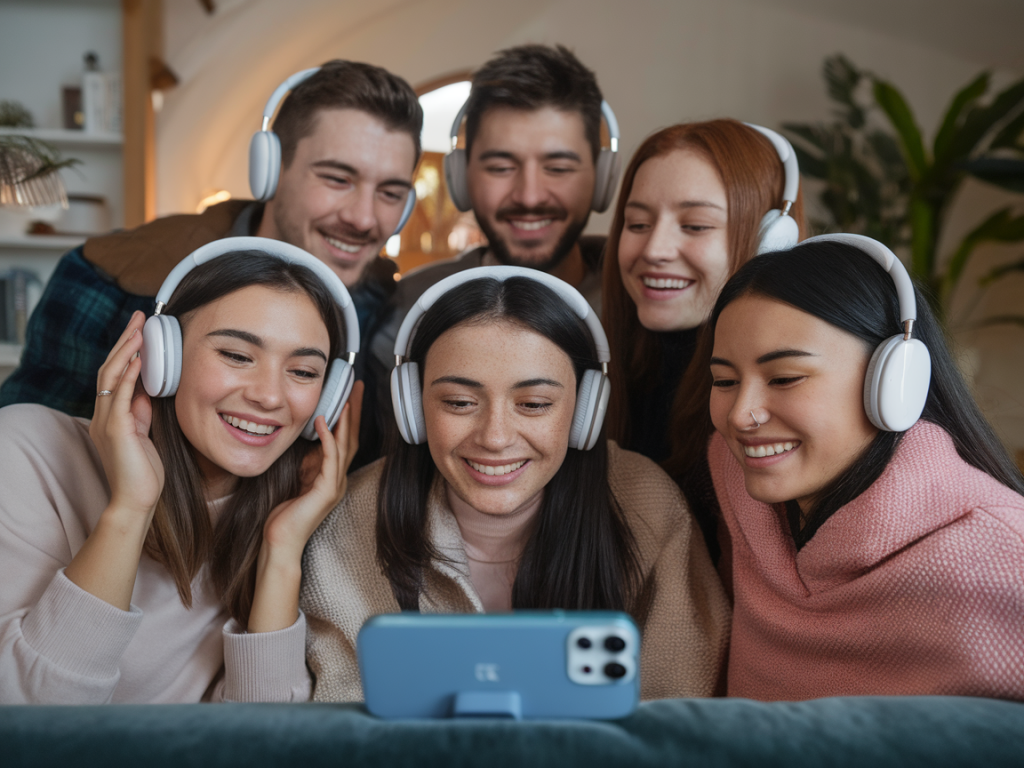
I often get asked how to get two (or more) people to listen to the same show from one phone without awkward speaker volume battles or tangled wires. As someone who tests compact tech daily, I’ve tried the built-in tricks on phones, cheap Bluetooth dongles, and higher-end transmitters. Below I’ll walk you through the practical ways to pair multiple Bluetooth headphones to one phone, explain the trade-offs, and give step-by-step instructions and product suggestions so you can pick the approach that fits your setup and budget.
Why this is harder than it sounds
Bluetooth was designed for point-to-point audio: one source, one sink. Modern phones and Bluetooth chips have added multi-stream features, but they’re inconsistent across manufacturers. Key limitations you’ll run into:
Options overview — quick comparison
| Method | Works with | Pros | Cons |
|---|---|---|---|
| iPhone Share Audio (AirPods/AirPods Pro/AirPods Max, Beats) | Recent iOS devices & Apple headphones | Very simple, synced, no extra hardware | Apple ecosystem only; limited to supported headphones |
| Samsung Dual Audio | Many Samsung phones & most BT headphones | Built-in, two headphones at once | Sometimes uneven volume/latency; Samsung-only feature |
| Bluetooth transmitter (aptX Low Latency) | Any phone with headphone jack/USB-C adapter or TV | Great for low latency and multiple receivers (some models) | Extra hardware; battery or power required |
| Apps or USB Bluetooth adapters for PC | Computers more flexible than phones | Can mix multiple outputs; software routing | Not a phone solution; setup complexity |
Built-in phone features — what works out of the box
Before buying anything, check your phone. Both iOS and some Android phones have multi-listening options that are the easiest to use.
How to use iPhone Share Audio (best when everyone has Apple headphones)
This method is tightly integrated and has excellent sync for video. It’s limited to Apple/Beats devices that support the feature.
How to use Samsung Dual Audio (or other OEM multi-audio features)
Dual Audio works for many headphones, but I’ve seen minor lag between devices and sometimes reduced audio quality. Samsung’s implementation supports two devices simultaneously only.
When built-in features aren’t enough: external Bluetooth transmitters
If your phone doesn’t natively support two headphones, or you care about low latency for watching shows, a dedicated Bluetooth transmitter is usually the most reliable option. These devices pair with two or more headphones and handle the audio streaming externally. Key benefits:
Recommended transmitters I’ve tested
Remember: both the transmitter and headphones must support a low-latency codec (aptX LL) to minimize lip-sync delay. Apple devices use AAC and their own AirPods latency is low within Apple’s ecosystem, but aptX LL is the practical choice for Android/third-party headphones.
Step-by-step: using a Bluetooth transmitter with your phone
Alternatives: wired splitters and hybrid setups
A reliable fallback is a simple wired splitter: a 3.5mm headphone splitter that lets two wired headphones plug into one jack. It’s cheap, zero-latency, and still useful if you have a USB-C-to-3.5mm adapter.
Hybrid setups are useful too: one person on Bluetooth, the other on wired via a splitter connected to a phone adapter or transmitter that accepts a passthrough audio jack.
Practical tips to improve experience
Troubleshooting common problems
Here are things I regularly run through when multiple-headphone setups misbehave:
When to choose each approach
- Use iPhone Share Audio if you and your partner both have Apple headphones — it’s simplest and most reliable for video.
- Use Samsung Dual Audio if you have a compatible Samsung phone and only need two listeners for casual audio.
- Use a dedicated aptX LL transmitter for the best video-sync experience across third-party headphones or when connecting to a TV.
- Use a wired splitter if you want guaranteed zero latency and a rock-solid low-cost option.
If you tell me your phone model and the headphones you plan to use, I can recommend a specific transmitter or the best phone setting to try first. I’ve carried transmitters and multiple earbud pairs through long flights and movie nights — the right combination makes shared viewing comfortable and simple.