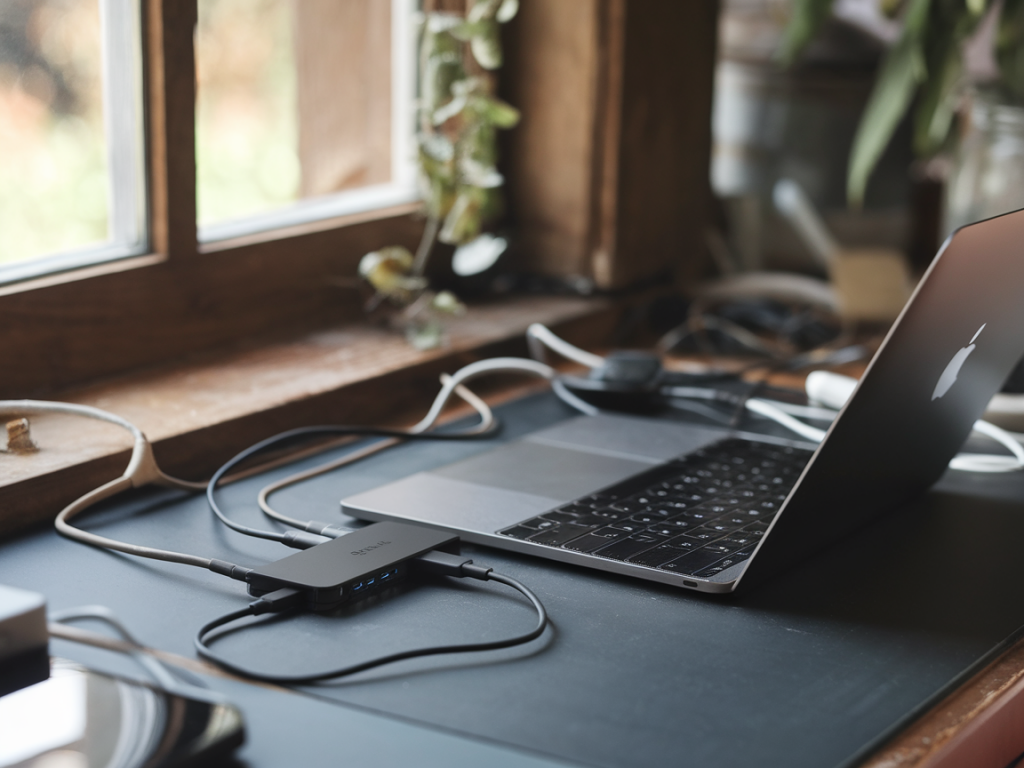
I rely on pocket-sized hubs and single-cable setups for almost everything I do, so when a USB-C accessory stops behaving on my Mac, it interrupts work fast. Over the years I’ve developed a compact checklist that solves most common problems without a trip to a service centre. The steps below combine quick hardware checks, macOS diagnostics, and a few safe resets that fix the majority of stubborn USB-C issues — from power and charging to external storage, displays and network adapters.
Quick prep: isolate variables
Before diving into system-level fixes, I always isolate the problem. It saves time and prevents unnecessary tinkering.
Try the accessory on a different device (another Mac, a Windows laptop, or even a modern phone). If it works there, the accessory is likely fine.Try a different USB-C cable and, if relevant, a different power adapter. Many failures come from low-quality or damaged cables (check if the cable is e-marked for PD if you’re using high-power charging).Try a different USB-C port on the Mac. Ports can fail individually.If you use a hub or dock, connect the accessory directly to the Mac to rule out the dock as the culprit.Check System Information and macOS logs
macOS provides built-in tools that reveal whether the system even sees an accessory.
Open Apple menu > About This Mac > System Report. In the left column under Hardware, check USB and Thunderbolt/USB4. If your device appears there, the Mac recognizes it on a hardware level.Use Terminal commands for a quick snapshot: system_profiler SPUSBDataType — lists USB devices system_profiler SPThunderboltDataType — shows connected TB/USB4 devicesFor transient errors, check Console.app and filter for USB or the accessory vendor name while you plug/unplug the device. You’ll often see driver or mount errors here.Storage devices: mounts, formats and First Aid
External drives are a frequent pain point. I follow this order:
Open Disk Utility and see if the drive appears (even if not mounted). Run First Aid on the device and partitions.If it shows in System Report but not Finder, check Finder > Preferences > General and Sidebar to ensure external disks are allowed to show.Try mounting via Terminal: diskutil list — locate the disk ID sudo diskutil mount /dev/diskNIf the drive uses NTFS or a specialized filesystem, ensure you have the appropriate driver (third-party NTFS drivers can interfere; safe test: boot into Safe Mode or create a fresh user and test there).Copy a small file to the drive to test sustained transfers; intermittent copy failures often point to cables, the hub, or failing drive electronics.Display issues (no signal, flicker, wrong resolution)
External display problems are usually cable or hub-related. I test in this order:
Confirm the monitor input is set to the correct USB-C/DisplayPort/HDMI source.Try a different cable and, if possible, connect the monitor directly to the Mac. Some hubs don’t implement DisplayPort MST or lose bandwidth when multiple displays are attached.Check System Settings > Displays (or System Preferences on older macOS) for arrangement and refresh rate. Press the Option key while clicking “Scaled” to see more resolution options.If the monitor appears only after sleep/wake or plugging/unplugging, try toggling Displays have separate Spaces or simply restart the Mac.Power and charging problems
Power-related glitches are common with unbranded chargers and counterfeit cables.
Check the charger’s wattage — macOS reports the charging wattage in System Report under Power for MacBooks. If it’s far lower than expected, the cable or charger likely can’t deliver PD correctly.Use a known-good PD-certified cable. Some cables only support charging, not data or video.For Intel Macs, try resetting the SMC (System Management Controller): Shut down, press Shift-Control-Option and the power button for 10 seconds, release, then start the Mac.On Apple Silicon Macs, shut down and wait 30 seconds, then restart — there’s no separate SMC reset; the power cycle handles it.Bluetooth and audio via USB-C
When a USB-C audio interface or Bluetooth dongle isn’t working:
Open System Settings > Sound to confirm the device appears and is selected for input/output.If a USB audio device appears briefly then disappears, check for firmware updates from the device maker (Focusrite, RME, etc.).Reset Bluetooth if you’re using a Bluetooth USB adapter: Option-click the Bluetooth icon in the menu bar and use Debug → Reset the Bluetooth module (older macOS) or toggle Bluetooth off/on with the icon.Network adapters and drivers
USB-C Ethernet adapters often need drivers for certain chipsets (Realtek, ASIX).
System Report > USB should show the adapter. If it’s present but doesn’t get an IP, open Network Preferences and add a new USB Ethernet interface.Check manufacturer websites for macOS drivers — install the latest signed driver and reboot.If the adapter worked before and stopped after a macOS update, check the adapter vendor’s site for a macOS-compatible driver; third-party kexts may need reinstallation or approval in Security & Privacy.Safe Mode, new user and macOS updates
Software conflicts can masquerade as hardware problems.
Boot into Safe Mode (hold Shift at startup) — this disables third-party kernel extensions and non-essential login items. Test the accessory there. If it works, a user-level app or extension is likely interfering.Create a new user account and log in to test. If the accessory works in a fresh account, the issue is in your user settings or login items.Keep macOS updated. Apple often fixes USB/Thunderbolt/driver issues in point releases.When to suspect hardware damage
If you’ve tried other cables, ports and computers and the accessory still fails, inspect for physical damage:
Look inside the USB-C port for debris or bent pins — use a torch and a non-metal pick very gently. Compressed air can help blow out dust.For intermittent behaviour that doesn’t show in System Report, the port or accessory’s connector solder joints may be failing. That’s when a service centre or manufacturer RMA is appropriate.Handy checklist (copy-and-use)
| Step | Action |
| 1 | Try different cable/port/device |
| 2 | Check System Report (USB / Thunderbolt) |
| 3 | Run Disk Utility First Aid for drives |
| 4 | Test direct connection (bypass hubs) |
| 5 | Reset SMC (Intel) or power cycle (Apple Silicon) |
| 6 | Boot Safe Mode / test new user |
| 7 | Install driver/firmware updates |
| 8 | Inspect ports and connectors physically |
If you want, tell me the exact Mac model, macOS version and the accessory model (brand, chipset if known). I can walk you through the specific System Report checks and the Terminal output to narrow it down further — I often resolve things in 10–20 minutes once I have those details.