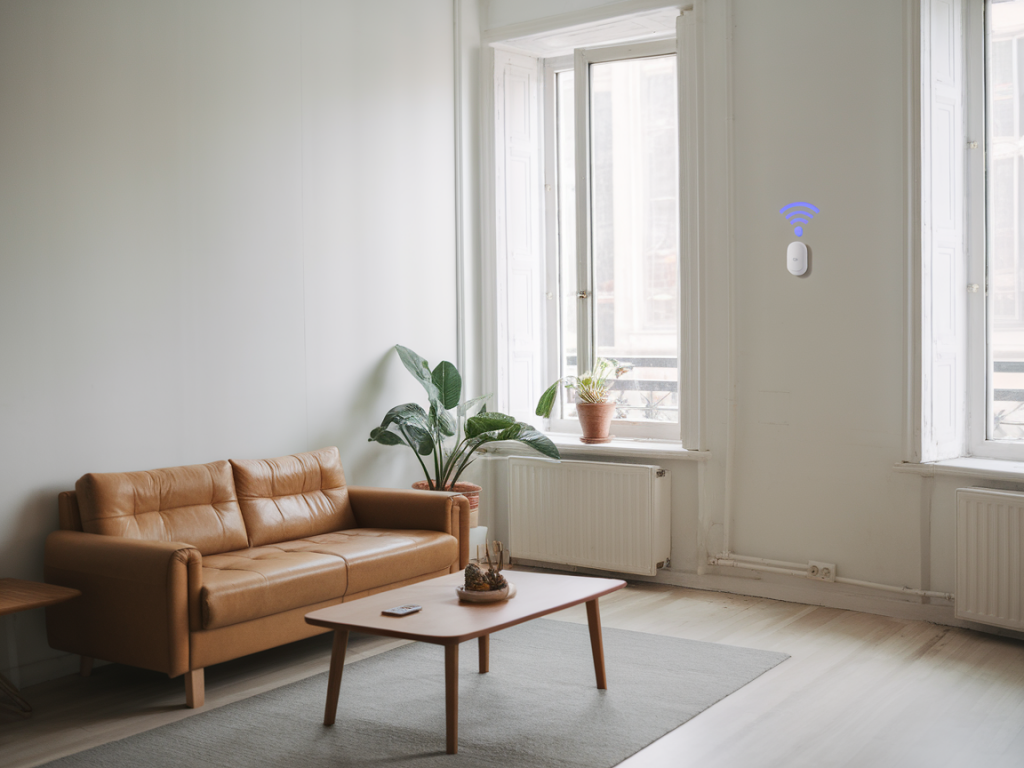
I moved into a two-bedroom flat last year and, like many people, I wanted fast, reliable Wi‑Fi everywhere without a bulky router taking over my living room. A tiny mesh Wi‑Fi node felt like the right answer: compact, aesthetically pleasing, and promising whole‑home coverage. After testing a few models and experimenting with placement and settings, I’ve gathered practical tips that will help you choose the right tiny mesh node for a two‑bedroom flat — and actually get the speeds you expect in real life.
Why choose a tiny mesh node for a flat?
Traditional mesh systems can be large and obvious. Tiny mesh nodes are designed to be discreet (many look like small puck lights or USB chargers), so they fit on a bookshelf or side table without screaming “network equipment.” For a two‑bedroom flat, the advantages are clear:
Compact footprint and better aestheticsEasier to place near devices (phones, laptops, smart speakers)Lower power use and simpler setup for non‑techy usersMany models still offer modern features — dual/tri‑band radios, WPA3, and app‑based controlThat said, “tiny” doesn’t always mean “best performance.” The trick is matching node capability and placement to your flat’s layout and your usage (streaming, video calls, gaming, smart home).
What to look for: key specs and real‑world meaning
When comparing tiny mesh nodes, don’t get lost in marketing numbers. Here’s what actually matters:
Wi‑Fi standard: Aim for Wi‑Fi 6 (802.11ax) if you have many devices or want future‑proofing. Wi‑Fi 6E adds 6 GHz but is overkill unless you have compatible devices and a clear need.Backhaul: Some tiny nodes only use wireless backhaul; others support wired Ethernet backhaul. If you can run a cable between the main router and a satellite, wired backhaul will give you much more consistent speeds.Radios and bands: A tri‑band node (2.4 GHz + 5 GHz + dedicated backhaul band) will perform better than a dual‑band node when multiple clients are active. But many compact Wi‑6 dual‑band nodes are excellent for flats with moderate use.Throughput vs. coverage: High theoretical throughput (e.g., AX3000, AX1800) doesn’t always translate to real gains. I focus on sustained throughput in my tests — what you’ll actually get in the bedroom when streaming.App and features: Parental controls, QoS, easy guest networks, and firmware updates matter. A buggy app ruins the experience faster than a slightly slower radio.Tiny nodes I’ve tested and who they suit
Here are a few models I tried in a typical two‑bed flat (open living room/kitchen, two bedrooms, one bathroom), and what I learned:
TP‑Link Deco X20 (AX1800): Small, affordable Wi‑Fi 6 nodes. Great for general browsing, 4K streaming in one room, and simple setups. Wireless backhaul works fine in a compact flat. If you stream high bitrate content in two rooms simultaneously, speeds can dip.Netgear Orbi RBK353 (AX5400, small satellites): Compact satellites with tri‑band radios, offering better multi‑device handling. Faster in real‑world mixed use (streaming + video calls). Slightly pricier but worth it if you work from home and have several heavy users.Google Nest Wi‑Fi Pro: Minimal, easy, and blends into decor. Good for stable day‑to‑day performance and simple device management. Lacks some advanced controls and doesn’t offer a dedicated wired Ethernet backhaul on some satellite units.Ubiquiti AmpliFi HD Router + MeshPoints: Stylish and designed for living spaces. MeshPoints are small and perform well for laptops and phones. Great if you want more control and are comfortable with slightly advanced setup.Placement tips that actually affect speed
Where you put a node matters more than the model you choose — especially in a small flat where walls and furniture can choke signals. Here’s a checklist I use when placing nodes:
Start with a map: Sketch your flat and mark the main router location, primary devices (TV, desktop, office laptop), and thick obstacles (bathroom, kitchen with metal cabinets).Main node near the broadband entry: Put the primary node where your ISP connection is. If that’s an awkward place (cupboard), consider either running a short Ethernet cable to a more central location or using a small switch to hide the box.Satellite halfway to dead zones: Place the tiny satellite roughly midway between the main node and the bedrooms. In my flat that meant a small node on a hallway console rather than in the living room.Avoid signal blockers: Metal shelving, fish tanks, and microwaves are Wi‑Fi enemies. Keep nodes several decimeters from these items and off the floor (eye level is ideal).Height and orientation: Elevate a node on a shelf or table, not on the floor. If the node has antenna orientation guidance, follow it — many internal antennas perform better upright.Test, then tweak: Use a phone speed test app in each room after initial placement. If speeds drop by more than half in a bedroom, move the satellite a bit closer or try a different room.Real‑world speed expectations
Numbers I saw in my flat using a 300 Mbps ISP plan:
| Location | Single node (router only) | Mesh node placed optimally |
| Living room (1m from router) | 280–300 Mbps | 280–300 Mbps |
| Bedroom A (through one interior wall) | 50–80 Mbps | 210–250 Mbps |
| Bedroom B (opposite side, two walls) | 10–30 Mbps | 180–220 Mbps |
These figures show the practical uplift: a well‑placed tiny mesh node turned unusable video calls into consistent HD streams. Your flat will vary depending on wall materials and interference, but the pattern is consistent — a second node placed strategically matters far more than chasing the highest AX number.
Wired backhaul: worth the effort for reliable speeds
If you can run Ethernet between the main router and a satellite, do it. In my testing a wired backhaul almost eliminated speed drops during simultaneous streaming or heavy file transfers. Even a short Cat5e/6 run behind a skirting board or in a cable channel is enough to stabilize performance. If wiring isn’t possible, prioritize models with a dedicated wireless backhaul band.
Practical setup workflow I use
Unbox and update firmware on the main node first.Place the second node roughly halfway and run the app’s setup flow.Run speed tests in each key room (use the same phone for consistency).If speeds are low, try moving the satellite 1–2 metres closer and retest.Enable QoS for video calls or prioritize specific devices if needed.Lock down security (strong password, WPA3 if available) and disable remote admin if you don’t need it.If you’d like, I can suggest exact placement diagrams based on your flat layout (send a quick sketch or describe where the router lives and where you'd like better coverage). I can also recommend specific node pairs tailored to budget and typical usage — from casual streaming to a busy home office.