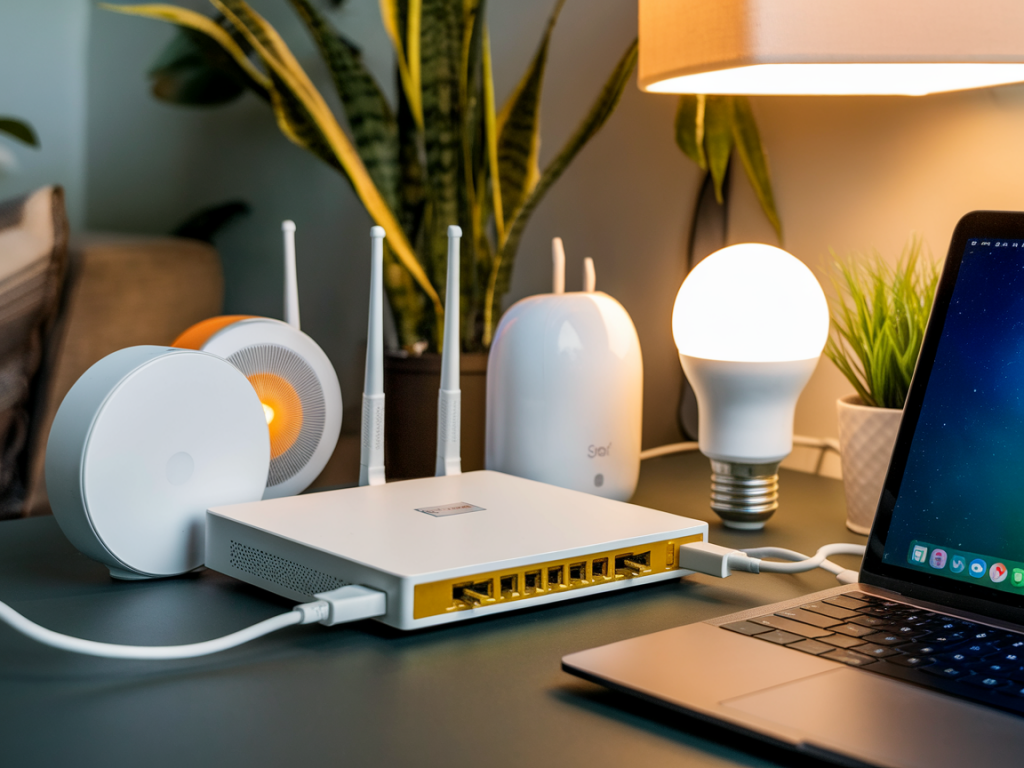
When friends or family visit, letting them control a few lights or cast a playlist to the living-room speaker can make for a warm, modern welcome. But I’ve learned the hard way that “guest-friendly” doesn’t have to mean “security-free.” Over the years of testing compact devices and home automation gear, I’ve settled on practical steps that keep your smart home usable for guests while protecting your devices and privacy. Below I’ll walk you through a secure guest smart-home setup that’s straightforward to implement on most modern routers and hubs.
Why you need a separate guest setup
Letting guests onto your main network is convenient but risky. Devices like smart plugs, cameras, or light bulbs are often less secure than phones or laptops. If a device is compromised, an attacker on the same network could try to reach other devices, sniff traffic, or access shared files. A guest setup isolates visitor traffic from your core smart-home infrastructure and personal devices, limiting the blast radius if something goes wrong.
Start with the router: guest Wi‑Fi or VLAN?
Most consumer routers offer a Guest Wi‑Fi option. That’s the simplest route and good enough for casual hosting. A proper VLAN (Virtual LAN) is stronger — it isolates traffic at the network level, preventing guest devices from seeing devices on your primary LAN. If you use advanced firmware (OpenWrt, DD‑WRT) or a router that supports VLANs (many Ubiquiti, Asus, Netgear models), I recommend doing VLAN segmentation. Otherwise, enable the built‑in Guest Wi‑Fi and tweak the settings below.
Key router settings to configure:
Protect smart hubs and voice assistants
Smart-home hubs (Philips Hue Bridge, Samsung SmartThings, Home Assistant) and voice assistants (Google Nest, Amazon Echo) often bridge multiple devices. I never connect a guest’s devices directly to a hub that controls cameras, locks, or automations. Options:
How to let guests cast media safely
Casting and streaming are the most common reasons visitors need access. I use these approaches depending on the device:
Smart locks, cameras and privacy
I treat locks and cameras as off‑limits to guest accounts. Never share access to smart locks or give an expiring PIN that’s easy to guess. For cameras, disable live view and notifications for guest users. If you want a temporary code for a smart lock (e.g., August, Yale, Schlage), generate a time‑limited code and revoke it immediately after the visit.
Account security and cloud services
Even isolated devices can leak info through cloud accounts. Follow these rules:
Keep firmware and passwords up to date
Basic hygiene goes a long way. I make it a habit to:
Monitoring, logging and time limits
It’s useful to see what guest devices are doing while they’re connected. Many routers have a simple client list or traffic monitor; enterprise‑grade systems (Ubiquiti Unifi, MikroTik) give deeper insights. Set reasonable time limits on guest SSIDs or create session expirations — for example, set the guest Wi‑Fi password to expire after a day using scheduled access or a captive portal.
Practical scenarios and quick recipes
Here are quick setups I use depending on how tech-savvy the guests are:
Quick checklist
| Step | Action |
| Create Guest SSID | Separate SSID + WPA3/WPA2, change password between visits |
| Enable Client Isolation | Prevent guests from seeing each other and LAN devices |
| Segment Sensitive Devices | Keep cameras, locks, and hubs on their own VLAN/LAN |
| Limit Hub Access | Guest users only, or temporary accounts with minimal permissions |
| Secure Accounts | Use 2FA and avoid signing guests into your cloud services |
| Monitor & Revoke | Use router logs, set access expiration, delete temporary credentials |
Setting up a secure guest smart‑home doesn’t require advanced networking skills — just some thoughtful defaults. I prioritize isolation, temporary access, and clear boundaries for what guests can and can’t control. That way I can offer convenience (play music, dim lights) without trading away security or privacy. If you tell me what router and hub you’re using, I can give step‑by‑step settings that match your gear.