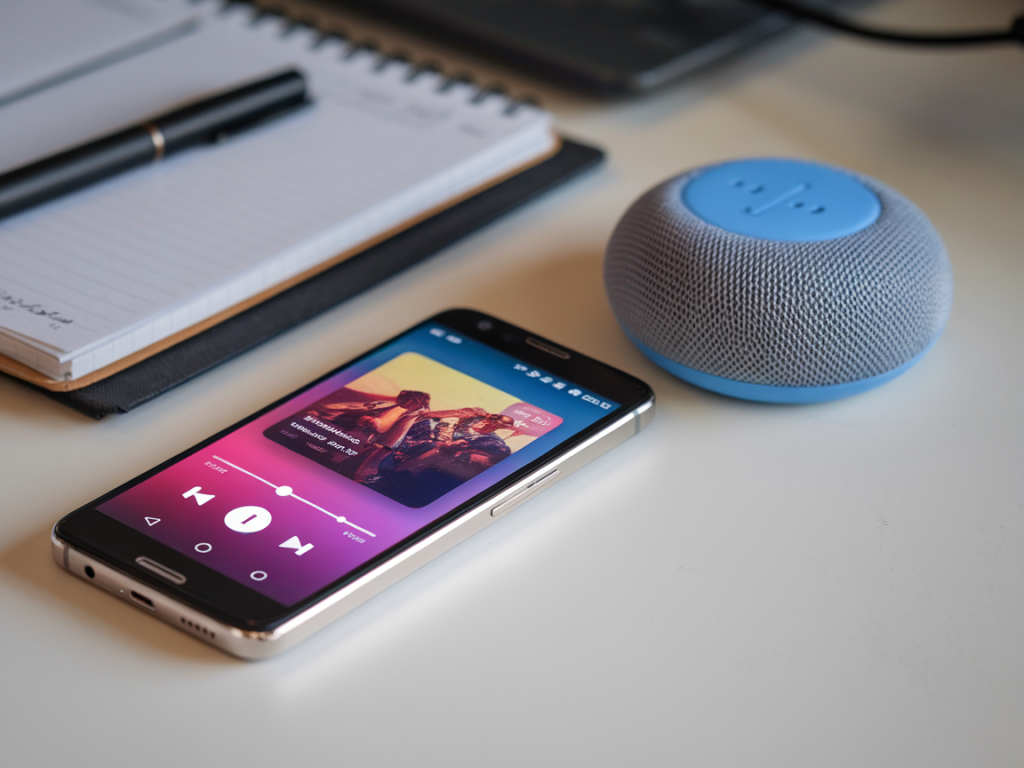
I love pocketable phones and tiny earbuds, but nothing kills that neat, minimalist vibe faster than audio that lags behind what you see on screen. If you’re like me and don’t want to root your phone or rush out to buy a new pair of headphones, there are a surprising number of fixes you can try right now. Below I’ll walk you through practical steps, why they work, and how to diagnose whether the problem is the phone, the earbuds, or the app.
Why Bluetooth audio lags (short, non-technical overview)
Bluetooth audio latency can come from a few places: the codec used to compress audio, how the phone’s Bluetooth stack and audio pipeline process sound, app buffering behavior, or interference from Wi‑Fi and other radios. Small phones sometimes have older Bluetooth chips, limited CPU time allotment for audio, or aggressive power saving that increases latency. Importantly, some causes are on the headphones' side — if they don’t support a low-latency codec, the phone can’t magically make them faster.
Quick checklist (do these first)
Step-by-step fixes I use on compact Android phones
These are hands-on steps that don’t require root or new hardware. I use them on phones like compact Pixels and older OnePlus Minis when I want better sync for videos and games.
1. Choose the right Bluetooth codec in Developer Options
Most modern Android phones let you pick the Bluetooth audio codec in Developer Options. The codec affects both audio quality and latency. Common codecs:
How to change:
Tip: If you’re unsure which codec your earbuds use, vendor apps (e.g., Sony, JBL) often show the active codec, or some phones show it in the status bar when actively connected.
2. Tweak sample rate and bits-per-sample
In Developer Options you’ll also see options for Bluetooth sample rate and bits per sample. Lowering the sample rate (e.g., 44.1 kHz) and bits (16-bit) can reduce processing time and buffer sizes, shaving off milliseconds.
3. Turn off audio processing that adds latency
Some phones and music apps apply audio effects (like equalizers, surround sound, spatial audio or Dolby Atmos). These add processing steps and buffer audio, increasing delay. Disable them:
4. Use game mode / low-latency modes
Many phones now include a “Game Mode” or “Audio Low Latency” setting that reduces background tasks and forces lower audio buffers. Brands like OnePlus, Samsung, and Xiaomi offer such modes. Enable it when playing games or watching videos.
5. Reduce Wi‑Fi / Bluetooth interference
Bluetooth shares the 2.4 GHz spectrum with Wi‑Fi. Heavy Wi‑Fi traffic or poorly chosen Wi‑Fi channels can interfere with BT audio and cause retransmissions (which look like lag). Try:
6. Close background apps and disable background restrictions
Small phones sometimes throttle non-foreground processes aggressively. Make sure the app you use for playback isn’t being battery-limited:
7. App-specific delay controls and workarounds
Some apps let you manually sync audio delay — very useful for video playback:
For games, look for in-game audio delay or latency options. If none exist, enabling the phone’s Game Mode is often the best bet.
8. Update headphone firmware — this often fixes latency
Manufacturers regularly push firmware updates that improve codec handling and latency. Open the vendor app (Sony Headphones Connect, Jabra Sound+, Bose Music, etc.) and check for updates. Even if your headphones are older, a firmware patch can make a surprising difference.
9. Try a different pair of earbuds you already own
If you have multiple earbud sets, test them. If audio is fine with one pair, the problem is likely the other earbuds’ codec or firmware. This step helps isolate phone vs accessory.
Troubleshooting table — quick diagnosis
| Symptom | Likely cause | Immediate fix |
| Lag only in one app (e.g., YouTube) | App buffering or settings | Try VLC/local file, clear app cache, adjust app audio delay |
| Lag in all apps | Codec/phone settings or interference | Change codec in Developer Options, disable effects, update firmware |
| Lag improves near router or worse near router | Interference (Wi‑Fi channel) | Change Wi‑Fi channel or move away |
| One earbud pair fine, other lagging | Headphone limitation or firmware | Update headphone firmware, try different codec |
When none of this helps — what you can still do (without buying new gear)
If you’ve tried everything above and lag persists, you still have some options that don’t require root or new hardware:
On compact phones I’ve tested, the biggest wins usually come from changing the codec in Developer Options, disabling audio enhancements, updating firmware, and enabling any low-latency or gaming mode the manufacturer provides. These changes are reversible and don’t cost a penny — and often shave off enough milliseconds to make movies and games feel properly in sync again.