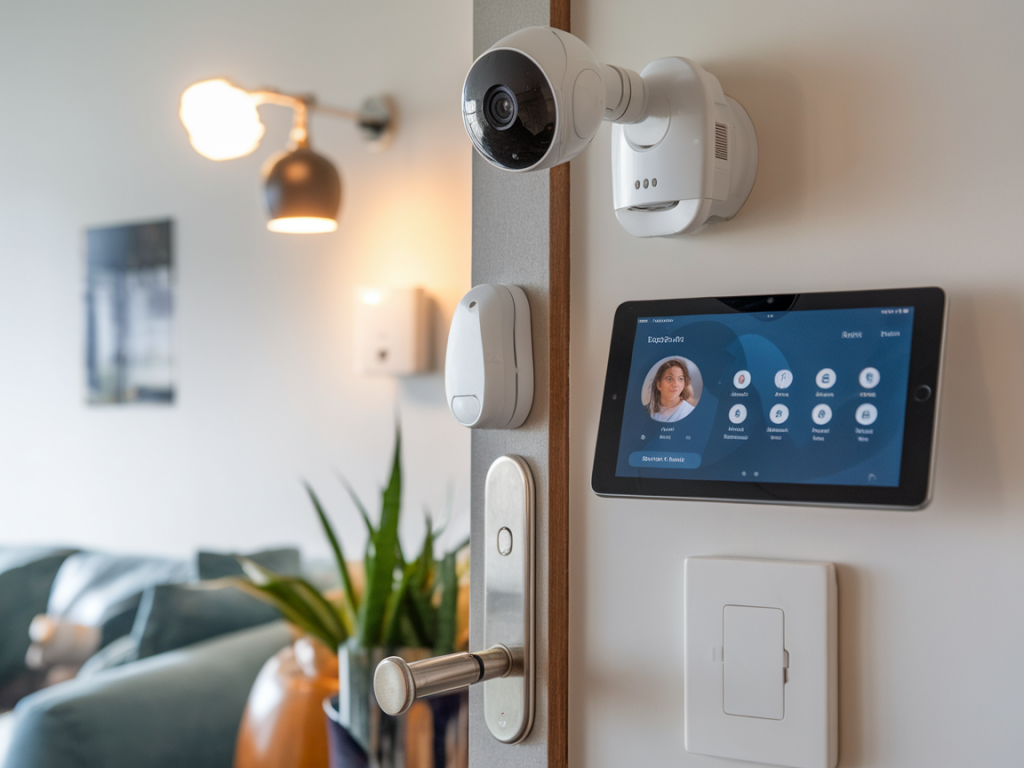
I often get asked how to let friends, family or short-term guests use parts of my smart home without handing over access to everything — cameras, door locks, voice histories and automations. I’ve been testing compact smart devices and juggling guest access patterns for years, and the trick isn’t just turning things off: it’s creating a repeatable “visitor profile” that’s temporary, limited, and easy to apply. Below I’ll walk you through how I build a private visitor profile that limits camera access, voice logs and device control, with practical steps you can adapt to the products you own.
Why a visitor profile matters
When someone visits, you usually want them to control lights or music, maybe unlock a smart deadbolt for a few minutes, but not see camera feeds, access door logs or trigger routines that change the whole house. Giving full account access — or sharing your primary app login — risks privacy and creates accidental automation triggers. A visitor profile is a safe middle ground: it gives convenience where needed and restricts sensitive systems.
Components of a good visitor profile
- Time limited — access expires automatically or is easy to revoke.
- Device-scoped — allows just the specific lights, thermostat or entry to be controlled.
- Camera-restricted — denies live view, event history and notifications.
- Voice-log control — prevents voice assistant from saving or indexing guest voice interactions.
- Network separation — runs guests on a VLAN/guest Wi‑Fi so devices remain isolated.
Set up your network first: guest Wi‑Fi and VLANs
Start at the network level — it’s the most reliable way to limit what a visitor’s device can see. I run a dedicated guest SSID on my router for any temporary users. On routers that support VLANs or advanced firewall rules (UniFi, Asuswrt, TP‑Link Omada), create a segment that blocks access to your smart-home hubs and local device APIs. That prevents phone-to-IP-camera discovery and stops guests from reaching an on‑premise Home Assistant or NAS with sensitive logs.
If you don’t have an advanced router, enable your router’s basic “guest network” option. It may only block local network access but that’s usually enough to keep phones from discovering local devices.
Use platform-level restricted users / shared access
Most leading ecosystems let you share limited access. Here’s how I apply restrictions on the three big platforms:
| Platform | How I restrict access |
|---|---|
| Google Home / Nest | Create a Household member (if family) or use Nest shared user for selected devices; disable camera sharing and turn off "Home & Away" events; set voice & audio activity deletion under myaccount.google.com/privacy. |
| Amazon Alexa | Add guest to Amazon Household (if trusted) or use Alexa app to create a Households/Guest profile; remove permissions to cameras and disable voice recordings for that Amazon account. Use Guest Connect for music only where supported. |
| Apple HomeKit | Invite a user via Home app and grant only specific room/device permissions; HomeKit doesn’t store voice assistant logs locally (Siri can be disabled). Avoid giving admin rights to prevent changes. |
For brands like Ring, Arlo, August and others, look for "Shared Users" or "Limited Access" when adding a person. Ring and Arlo let you share doorbell live view or not; choose "shared device" rather than "account." For smart locks like August or Yale, create one‑time codes or time-limited PINs instead of sharing your main code or app access.
Camera access: what to turn off
Cameras are the sensitive part. I never give live camera rights to casual visitors. On cameras that support it, I do the following:
- Disable live view and history sharing for the visitor account.
- Turn off motion notifications to their devices.
- Enable privacy mode or schedule a privacy shutter during their visit if the camera has one (Wyze, Arlo, Wyze Cam v3 with local cover, etc.).
- Use privacy zones to black out interior areas like bathrooms or bedrooms.
If you want total reassurance, create a simple automation that mutes or disables cameras when a guest profile is active. For example, I have a Home Assistant scene that sets cameras to "privacy" and silences doorbell alerts during guest hours; I toggle the scene when I enable a visitor profile.
Voice assistants and voice logs
Voice recordings can persist with assistants (Google, Amazon). To limit this:
- Use platform settings to auto-delete recordings after a short period (e.g., 3 months or 18 months in Google). I often set it to auto-delete after 3 months for shared households and manually delete recordings after a visitor leaves if needed.
- Consider disabling "assistant personalization" or "voice match" features for visitor accounts so their voice isn’t added to your voice profile database.
- Create a "guest mode" routine that reduces assistant capability (e.g., disables shopping or in‑home calling).
On Alexa, you can turn off voice recording storage per account; on Google you can pause saving voice activity. I recommend checking the assistant’s Privacy Dashboard before guests arrive so you know what’s stored and can quickly clear sensitive clips.
Device control and automations
Limit what a visitor can trigger by giving them access only to specific devices or scenes. Practical steps I use:
- Create a "Guest Lights" group that contains only entry hall and living room lights — share that instead of the whole lighting system.
- Set smart plugs used by guests (for chargers, coffee pots) to be individually shareable or on a separate hub if your platform supports it.
- Disable or block high-impact automations from running when Guest Mode is active (for instance, “all lights off at 11pm” or “lock door after X minutes”) by adding a condition that checks the guest profile variable.
Temporary access: use codes, schedules and one-time links
Where possible, favor ephemeral access methods:
- Smart locks: generate a time-limited PIN or one-time code (August, Schlage, Yale). I create codes that expire the same day a guest leaves.
- Camera/view-only links: some services (like Nest) can generate view-only invites that you can revoke after the visit.
- Temporary HomeKit or Google invites: set calendar reminders to revoke invites after the guest leaves.
Testing and checklist before a guest arrives
I always run a quick checklist to confirm the visitor profile works as intended:
- Connect a spare phone to the guest Wi‑Fi and verify it cannot discover local devices.
- Log in with the guest account (or accept the invite) and confirm which devices are visible and controllable.
- Verify camera feeds are blocked and voice assistant history isn’t being recorded or saved.
- Test temporary lock codes and confirm they expire.
- Run automations that should be suppressed and ensure they don’t trigger for the guest profile.
I keep a short "Guest Profile" note in my phone with the exact steps to enable/disable the profile and a reminder to revoke access the evening the guest leaves. It’s a small habit that prevents accidental long-term access.
Products and tools I rely on
Over the years I’ve found certain products easier to manage for visitor scenarios: Ring and Arlo for discretionary camera sharing, August and Schlage for flexible temporary lock codes, and Home Assistant for custom "guest mode" automations that tie everything together. If you lean fully into one ecosystem (Apple, Google or Amazon), learn its user-sharing model well — that’s where the most effective access controls live.